user guide
Welcome to the comprehensive user guide for Corral — the unified management platform for virtual machines, pet-pod containers, and local hypervisors.
Backends, contexts, and peers
A context is a named connection to one backend. Examples are the local host, a kube context, an Incus remote, a libvirt URI and a Proxmox VE cluster. Corral shows the instances of all contexts at the same time.
corral setup                                  # find the backends on this host and save them
corral context list                           # the * marks the default destination
corral context add hv --backend libvirt --context qemu+ssh://hypervisor/system
corral context use hv                         # aliases: set, switch
corral config set-default-backend incus       # backend for creates with no backend flag
corral context use takes a context name, not a URI. It does not change
kubectl or the Incus client. The global --context NAME flag selects a
context for one command.
A local dashboard can aggregate an in-cluster Corral without a local kubeconfig:
corral peer add homelab https://corral.example.ts.net
For a console, Corral tries the direct address that the VM advertises first. It relays through the peer only when direct access is not available.
Start here
Run corral --demo, corral web --demo or corral list --demo to try
Corral with a built-in fake fleet. Then pick the backend that you have.
| Backend | Setup guide |
|---|---|
| Local QEMU/KVM | No setup. Run corral doctor --context local |
| KubeVirt | kubevirt-proxmox-setup.md |
| Incus | incus-backend-setup.md |
| libvirt | libvirt-backend-setup.md |
| Proxmox VE | The commands below, and ADR-0009 |
Local QEMU/KVM — a VM on this machine, under a systemd user unit:
corral create scratch --iso ~/Downloads/ubuntu-24.04.iso --disk 40G --start
corral viewer scratch          # VNC, to run the installer
corral ssh scratch             # after the guest has an SSH server
KubeVirt — a VM on the cluster of your current kube context:
corral doctor
corral create web --kubevirt --image fedora
corral start web
corral ssh web -u fedora
Incus — a VM on an Incus remote:
corral context add lab --backend incus --context local
corral create web --context lab --image images:ubuntu/24.04 --mem 4GiB
corral ssh web                 # runs incus exec
libvirt — a domain on a local or remote hypervisor:
corral context add hv1 --backend libvirt --context qemu+ssh://admin@hv1.example.net/system
corral create db --context hv1 --iso /var/lib/libvirt/images/debian-12.iso
corral list
Proxmox VE — the guests of an existing cluster:
corral context add pve --backend proxmox --context pve.example.net
export CORRAL_PROXMOX_TOKEN='corral@pve!corral=TOKEN-SECRET'
corral doctor --context pve
corral list
Corral reads the Proxmox token from CORRAL_PROXMOX_TOKEN, or from
proxmox.token in the context entry of ~/.config/corral/config.yaml.
corral create NAME --context pve --iso local:iso/debian.iso creates a VM on
Proxmox. The ISO must already be on a PVE storage, named by its volume id.
A backend that the CLI cannot create on (VirtualBox, vSphere, Xen, Nutanix)
stops with create is not supported on backend NAME from the CLI; Corral
never creates the VM on a different backend instead.
Common workflows
Copying files to and from KubeVirt
corral cp ./build.tar web:/tmp/build.tar -u ubuntu -i ~/.ssh/id_ed25519
corral cp 'web:/tmp/report [final].txt' ./report.txt -u ubuntu
corral cp -r ./workspace web:/home/ubuntu/ -u ubuntu
# A fully scoped selector disambiguates duplicate names:
corral cp ./build.tar kubevirt/production/corral-vms/web:/tmp/ -u ubuntu
Exactly one endpoint must be local. Corral does not accept guest-to-guest
copies, Corral peers or backends other than KubeVirt. The guest needs an SSH server
with an active SFTP subsystem. It must accept a private key or SSH-agent
authentication. Install OpenSSH's sftp client and virtctl locally.
--identity restricts authentication to that private key. Without it, Corral
uses only the current SSH agent, with no implicit key files. Corral does not
use password authentication. The username defaults to the remembered registry
username, then $USER, then root. --user overrides it but does not change
the registry.
Paths are literal, even with spaces, quotes, $, semicolons, brackets and
wildcards. Quote them against your local shell. No guest shell interprets these
paths. Legacy SCP does not interpret them. Use ./local:name or an absolute path
for local names with colons.
Relative guest paths start in the SFTP login directory.
~ is literal, not home-directory expansion.
Corral refuses NUL, CR and LF. Copies can overwrite files; parent directories
must already exist. Directories need --recursive (-r). Recursive copies
include hidden files and empty directories but do not follow symlinks inside
the tree. This is not an atomic sync, a backup that preserves permissions, or
a disk-image move.
cp uses a private host-key database in the cache directory for the OS user:
corral/guest-ssh/<scope>/known_hosts. The scope hashes the resolved Kubernetes
context, namespace and VM name. First use automatically pins the presented key.
This is trust on first use, not independent verification. Corral does not
accept changed keys, even if you recreate a VM under the same name. Corral never
automatically removes or replaces pins.
Independently investigate a changed key before you deliberately manage its
scoped pin. There is no insecure bypass. cp does not use or change user/global
known_hosts or SSH configuration. Corral refuses keys that are unsafe,
symlinks/hardlinks, trust files/directories that are non-private, and ancestors that are unsafe.
It does not silently repair them.
The current user or root must own each ancestor. Other users must not have
write access to ancestors, except in trusted sticky directories such as /tmp.
Corral refuses identity/cache paths with literal ${ because OpenSSH would
expand environment variables after validation. This restriction does not apply
to transferred filenames.
This private-storage implementation supports Linux and macOS; other hosts
fail explicitly. This policy belongs to cp; the current corral ssh command
does not share these pins.
A persistent KubeVirt workspace root
Container-disk roots (--container-disk, also used by some catalog images)
are ephemeral. Installed tools and root-filesystem changes can disappear when
KubeVirt recreates the VMI. --disk adds a blank data PVC with persistent
storage to a container-disk VM, not a persistent root. Corral does not format
or mount that data disk in the guest.
For a reusable workspace, use CDI to import a root image:
# Replace workspace-cluster everywhere below with your kubeconfig context.
# Use a trusted, architecture/firmware-compatible qcow2/raw cloud image URL.
: "${CLOUD_IMAGE_URL:?Set a trusted qcow2/raw cloud-image URL first}"
corral context add workspace-cluster --backend kubevirt --context workspace-cluster
corral create workspace --context workspace-cluster --kubevirt \
  --namespace corral-vms --import "$CLOUD_IMAGE_URL" --disk 32Gi
vm=kubevirt/workspace-cluster/corral-vms/workspace
corral start "$vm"

# On a Linux workstation with GNU timeout, bound each SSH attempt too.
# This uses the existing ssh command's authentication/trust policy, not cp's.
ready=false
for attempt in $(seq 1 30); do
  if boot_id=$(timeout 15s corral ssh "$vm" -u ubuntu -i ~/.ssh/id_ed25519 \
      -c 'cloud-init status --wait >/dev/null && cat /proc/sys/kernel/random/boot_id'); then
    printf 'Guest boot ID: %s\n' "$boot_id"
    ready=true
    break
  fi
  sleep 5
done
[ "$ready" = true ] || { echo 'Guest did not become ready' >&2; exit 1; }
corral cp -r ./workspace "$vm:/home/ubuntu/" -u ubuntu -i ~/.ssh/id_ed25519
The cluster needs CDI and a suitable storage class with enough capacity for
the imported/expanded root. The image must boot on this cluster and support
NoCloud cloud-init. It must provision the selected guest account (ubuntu
above), its SSH authorized key and an SSH/SFTP server.
Corral includes the first available public key from local files in generated
cloud-init: ~/.ssh/id_ed25519.pub, id_rsa.pub or id_ecdsa.pub. Use its corresponding
private key. Alternatively, explicitly provision your chosen key/account
through --cloud-init. Imports do not install absent guest services or add
cloud-init support to an incompatible image.
The imported workspace-disk PVC holds the root across stop/start and VMI
recreation. corral delete deletes its managed disk too. Record a new boot ID
after a reboot and check your workspace files/tools. A successful import or
an old boot ID does not prove persistence.
CLI, TUI or web UI
The CLI, the TUI and the web UI use the same inventory and the same configuration. Use the interface that fits the task:
| Interface | Use it to |
|---|---|
CLI (corral COMMAND) | Write scripts and CI jobs. Add --json for machine-readable output |
TUI (corral) | Look at the whole fleet in a terminal, and do actions from a menu that shows only the operations that the backend supports |
Web UI (corral web) | Use consoles in the browser, dashboards and graphs, and access from a phone |
Some operations have a gap on one interface. For example, Incus and libvirt snapshots work in the TUI only. See backend support.
Create, connect and remove
corral create web --kubevirt --image fedora
corral list                              # status, context and the ID of each instance
corral info web
corral ssh web -c 'uptime'               # one command, no shell
corral ssh web -L 8080:localhost:80      # open http://localhost:8080 for port 80 of the VM
corral stop web
corral delete web                        # asks first; -f does not ask
When two contexts have an instance with the same name, give the ID from the
id: line of corral list instead of the name.
Find VMs and read their facts
corral list --prefix tuna-q-                 # names that start with tuna-q-
corral list --tag pair=run42 --json          # VMs with the tag pair=run42
corral list --tag pair=run42 --tag desktop=gnome
corral info web --json                       # one structured object for scripts
The --prefix and --tag filters apply to the table and to --json. When
you give --tag two or more times, a VM must have all of the tags. A tag
without a value, for example --tag perf, means perf=true. Only KubeVirt
VMs have tags. In corral list --json, the tagValues field shows the tags
of each VM.
corral info NAME --json shows the name, namespace, backend, status, node,
CPU topology, dedicated CPUs, memory, disks, input devices, firmware, IP
addresses, tags, labels and the bootc image. Without --json, corral info
shows the description from the backend. The structured output works on
KubeVirt only. On other backends, corral info NAME --json stops with an
error.
Make a matched pair of VMs for performance tests (KubeVirt)
A performance comparison needs two VMs that are the same, except for the
guest. Use these flags on corral create or corral bootc create:
| Flag | Result |
|---|---|
--node NODE | The two VMs run on the same node. |
--cpu, --mem, --disk | The two VMs have the same size. Use the same values for the two VMs. |
--dedicated-cpus | Each vCPU gets its own host CPU. The memory request is equal to the memory limit, thus the VM has the guaranteed QoS class. |
--isolate-emulator-thread | The QEMU emulator thread gets one more host CPU. You must also use --dedicated-cpus. |
--tag KEY=VALUE | Corral writes the label corral.dev/tag.KEY=VALUE on the VM. Use the same tag on the two VMs to make a group. |
corral bootc create gnome-vm --image ghcr.io/tuna-os/marlin:latest \
  --node karnataka --cpu 4 --mem 6G --disk 40Gi \
  --dedicated-cpus --tag pair=run42 --tag desktop=gnome
corral bootc create tuna-vm --image ghcr.io/tuna-os/marlin:latest \
  --node karnataka --cpu 4 --mem 6G --disk 40Gi \
  --dedicated-cpus --tag pair=run42 --tag desktop=tuna
corral list --tag pair=run42 --json
corral info gnome-vm --json | jq '{node, cpu, memory}'
Make sure that the two VMs show the same node, cpu.vcpus and memory
values, and cpu.dedicatedCpuPlacement: true.
--dedicated-cpus needs a node with the label cpumanager=true. KubeVirt
sets this label when two conditions are true:
- The kubelet on the node uses the static policy of the CPU manager
(
cpuManagerPolicy: static) and keeps CPUs for the system (reservedSystemCPUs). - The KubeVirt CR enables the
CPUManagerfeature gate.
If the node does not have the label, Corral stops before it creates the VM,
and the error names the node. If you do not give --node, Corral looks for
one schedulable node with the label. For corral bootc create, Corral does
this check before the disk build starts. The builder VM does not get
dedicated CPUs or tags.
The flags work on KubeVirt only. On other backends, Corral stops with an
error and does not create the VM. You cannot use --dedicated-cpus with
--instancetype, because the instancetype sets the CPU configuration.
Delete VMs and clean up
corral delete web db -f                  # two VMs, no question
corral delete web -f --wait              # stop when all objects of the VM are gone
corral delete web db -f --wait --json    # one result for each VM, for scripts
corral gc --builders                     # remove bootc builds that stopped before the end
corral delete accepts one or more names. It asks one question for all the
names. Use -f to delete without the question.
On KubeVirt, corral delete removes the VM and all the objects that Corral
made for it:
- The VM and its VMI.
- The disks: the DataVolumes and the PVCs.
- The cloud-init Secret and the Windows answer-file ConfigMap.
- The tailnet proxy and the LAN Service.
- The snapshots, the restores and the clones of the VM.
- The CronJobs of
corral schedule,corral snapschedandcorral backup. - The builder VM, the disk and the Secret of a
corral bootc createthat stopped before the end.
Corral finds an object by its name or by the label corral.dev/vm=NAME.
Corral does not delete a labeled disk that a different VM uses. A clone gets
the labels of the source disks, thus this rule keeps the disks of the clone.
You can also delete a name that has only the objects of an interrupted
build. For example, you stop corral bootc create desk before the VM exists.
Then corral delete desk removes the builder VM and the disk. Corral looks
for these objects in the default context. Use --context for a different
context.
After deletion, Corral removes saved credentials for that backend, context, namespace and peer. Corral keeps old entries that lack a remote context. It warns because it cannot prove which cluster owns each entry. Corral does not use those entries for another target.
Data in the registry does not prove that a VM exists.
Check each entry's owner before you keep or remove it in
~/.local/share/corral/registry.json. A new default context does not migrate
these entries.
Corral reports failures to save data in the registry even after the backend operation has finished. It does not delete VM or pool data to undo that operation. If Corral cannot save an SSH username, it warns you. It still uses the username you supplied for this connection.
A delete does not wait for Kubernetes finalizers. Add --wait to wait until
the deleted objects are gone. --timeout sets the maximum time. The default
is 5 minutes. If an object stays after that time, the command fails and
names the object.
With --json, the output is a list with one item for each name:
[
  {
    "name": "web",
    "deleted": true,
    "removed": ["virtualmachine.kubevirt.io/web", "persistentvolumeclaim/web-disk"]
  },
  {
    "name": "db",
    "deleted": false,
    "removed": [],
    "error": "instance \"db\" does not exist"
  }
]
removed gives each object as kind/name. Other backends delete a VM as one
unit, thus their list is empty. If one VM fails, Corral continues with the
other names. The exit status is not zero when Corral cannot delete a VM.
corral gc --builders removes a bootc builder VM that has no final VM and is
older than --builder-age. The default age is 2 hours. Corral also removes
the disk and the Secrets of that build. A build that completed but that you
did not finish with corral bootc create --resume counts as interrupted.
Wait until a VM is ready
Use corral wait in scripts. Do not write a loop around corral ssh. The
command stops when all the conditions that you name are true:
corral wait vm --unit gdm.service --paint --timeout 15m
A canonical ID selects the backend, context, and namespace for all probes. Use the ID to distinguish VMs with the same name in different namespaces:
corral wait kubevirt/prod/corral-vms/vm --unit gdm.service --paint --timeout 15m
| Flag | The condition is true when |
|---|---|
--running | The backend shows that the VM runs. Corral always does this check first |
--ssh | The guest runs a command over SSH as --ssh-user (default root) |
--boot-complete | systemctl is-system-running shows running or degraded |
--unit NAME | systemctl is-active NAME shows active. You can use this flag more than one time |
--exec CMD | The command CMD in the guest exits with 0. You can use this flag more than one time |
--paint | A screenshot of the console is not blank |
--boot-id ID | The guest has a boot ID that is not ID |
Corral does the checks in the order of the table, one time each
--interval (default 5s). It writes each condition to stderr when the
condition becomes true. --boot-complete, --unit, --exec and --boot-id
use SSH, so they also add the SSH condition. The backend must support
corral screenshot for --paint.
Each SSH check also reads the boot ID of the guest. If the boot ID changes,
the guest restarted, and Corral does the guest checks again. After
corral restart, the old boot can still answer for some seconds. To prevent
this, give the boot ID from before the restart:
old=$(corral --json wait vm --ssh | jq -r .boot_id)
corral restart vm
corral wait vm --boot-id "$old" --unit gdm.service --paint --timeout 15m
If a condition is not true before --timeout (default 10m), the command
exits with a value that is not 0. The message gives the condition and the
last result of its check. With --json, the command writes one object to
stdout:
{"vm": "vm", "ready": true, "elapsed_seconds": 95.2, "boot_id": "b5daeddb-…",
 "conditions": [{"name": "unit:gdm.service", "ok": true, "elapsed_seconds": 80.1, "observed": "active"}]}
elapsed_seconds of a condition is the time at which it became true. A
condition that Corral did not check has no observed value.
Clone a VM and use templates (KubeVirt)
corral clone web web-copy
corral images pull ubuntu                # a stopped VM with the template mark
corral template ls
corral template new tmpl-ubuntu dev1     # a new VM from the template
corral template mark web                 # use your own VM as a template
Clone and templates work on KubeVirt only. On other backends, use a cold move or the native clone command of the backend.
Move a VM to another backend
corral move copies the disk to another backend and makes a VM there. It is
a cold move: the guest stops, and it gets a new MAC address and usually a new
IP address. The source stays, stopped, unless you add --delete-source.
corral move web --to libvirt --dry-run   # the plan and the warnings, no change
corral move web --to libvirt
corral move web --to qemu --name web-local
To move a KubeVirt VM to another node of the same cluster with no stop, use
corral migrate web --node NODE.
Snapshots
corral snapshot create web
corral snapshot ls web
corral stop web
corral snapshot restore web SNAPSHOT
corral snapshot rm web SNAPSHOT
The corral snapshot commands work on KubeVirt. For local QEMU, Incus and
libvirt instances, use the Snapshots action in the TUI.
Install plugins
Plugins add workflows that not every user needs. They install into
~/.local/share/corral/plugins and run as corral NAME.
corral plugin search
corral plugin info backup
corral plugin install backup
corral plugin update                     # every plugin that you did not pin
If a plugin asks for permissions, corral plugin install stops and names
them. Read them with corral plugin info NAME, then add
--accept-permissions.
| Plugin | Install it when | First commands |
|---|---|---|
bootc | You boot bootable container images as VMs | corral bootc create dev --image bluefin |
backup | You keep VM disks in S3, R2 or another rclone remote | corral backup create web --dest r2:backups/corral, corral backup list |
windows | You install Windows guests with UEFI, TPM and virtio drivers | corral windows requirements, corral windows create win11 --iso URL |
gpu | You give a GPU or another PCI device to a VM | corral gpu list, corral gpu attach web --device ID |
first-party-plugins.md lists the backends that each plugin supports.
When something fails
Run corral doctor, then look for the error text in
problems and fixes.
1. Overview & Architecture
Corral puts VMs and containers from many backends into one interface, one CLI, and one Tailscale network.
flowchart TD
    User([User / CLI / Web UI]) --> Corral[Corral Core]

    subgraph Backends
        Corral --> QEMU[QEMU / KVM Local]
        Corral --> KubeVirt[KubeVirt / Kubernetes]
        Corral --> CT[Pet-Pod CT / K8s]
        Corral --> Incus[Incus / LXC and VMs]
        Corral --> Libvirt[libvirt local or SSH URI]
        Corral --> Proxmox[Proxmox VE cluster]
        Corral --> Peer[Remote Corral peer]
    end

    subgraph Access Layer
        QEMU --> Tailnet[Tailscale Tailnet]
        KubeVirt --> Tailnet
        CT --> Tailnet
        Incus --> Tailnet
        Libvirt --> Tailnet
        Proxmox --> Tailnet
        Peer --> Tailnet
    end
Supported Compute Backends
| Backend | Scope | Tech Stack | Use Case |
|---|---|---|---|
| QEMU | Local Host | QEMU / KVM + systemd | Fast, local ephemeral or dev VMs on your workstation |
| KubeVirt | Cluster | KubeVirt + Kubernetes | Production VMs with live migration, PVC storage, and scaling |
| Container (CT) | Cluster | Kubernetes Pod + PVC | "Pet Pods" — persistent Linux containers (Distrobox on K8s) |
| Incus | Local or remote | Incus remote | Containers and VMs managed through existing Incus trust |
| libvirt | Local or remote | libvirt URI / OpenSSH | Existing domains and remote QEMU hypervisors |
| Proxmox VE | Cluster | Proxmox VE HTTPS REST API | VMs and LXC containers managed on existing PVE clusters |
2. Interactive Interfaces
Web Dashboard
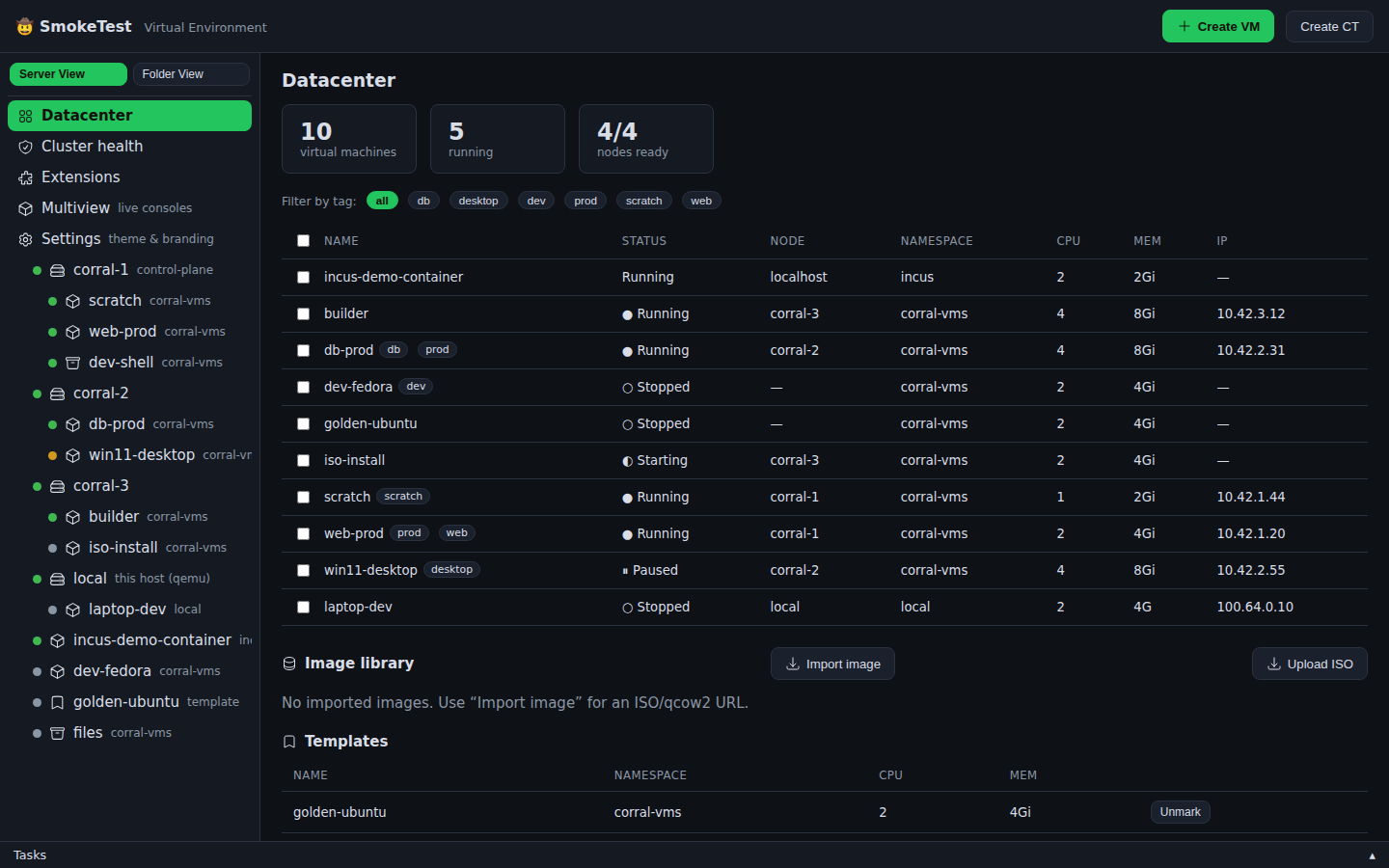
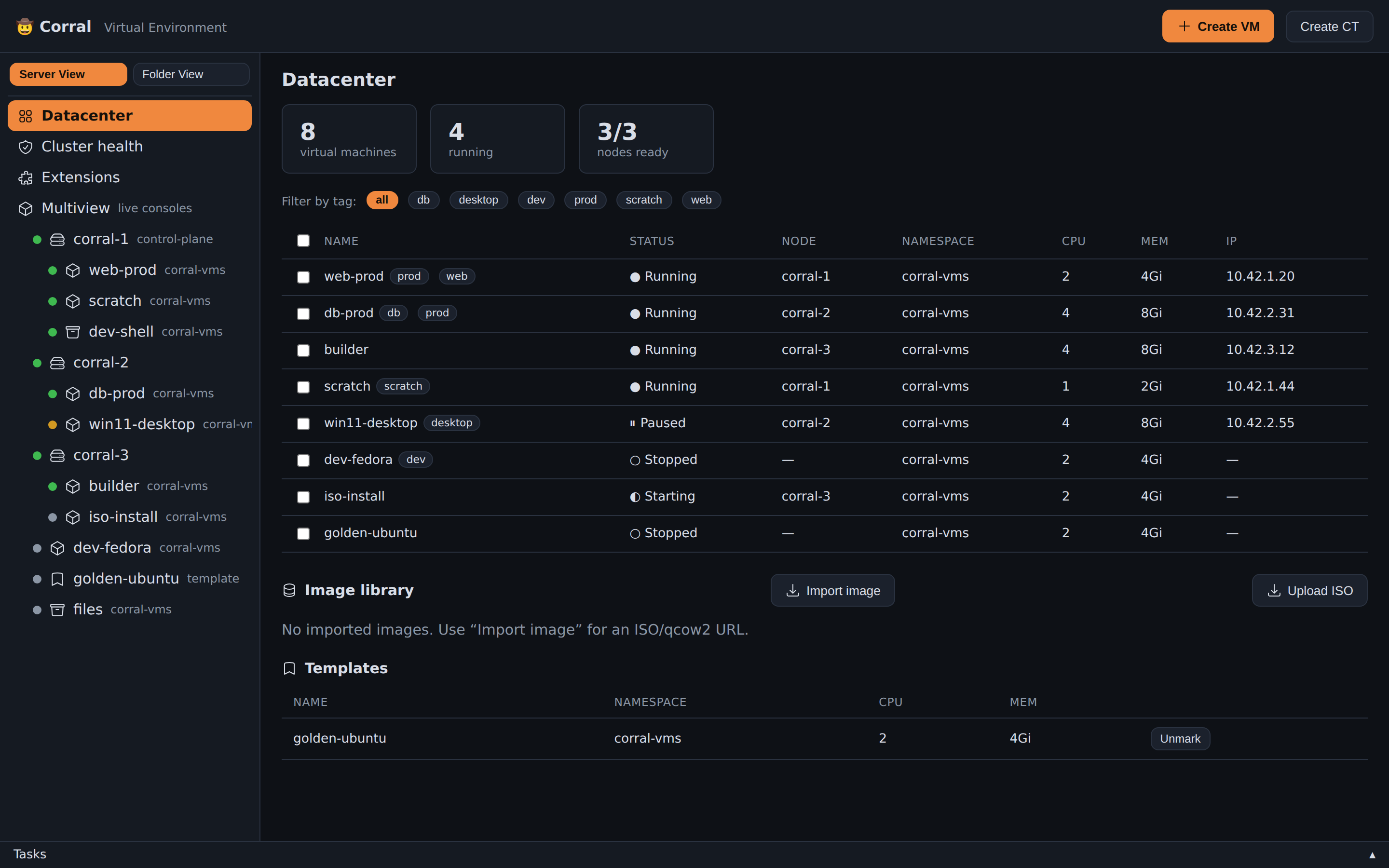
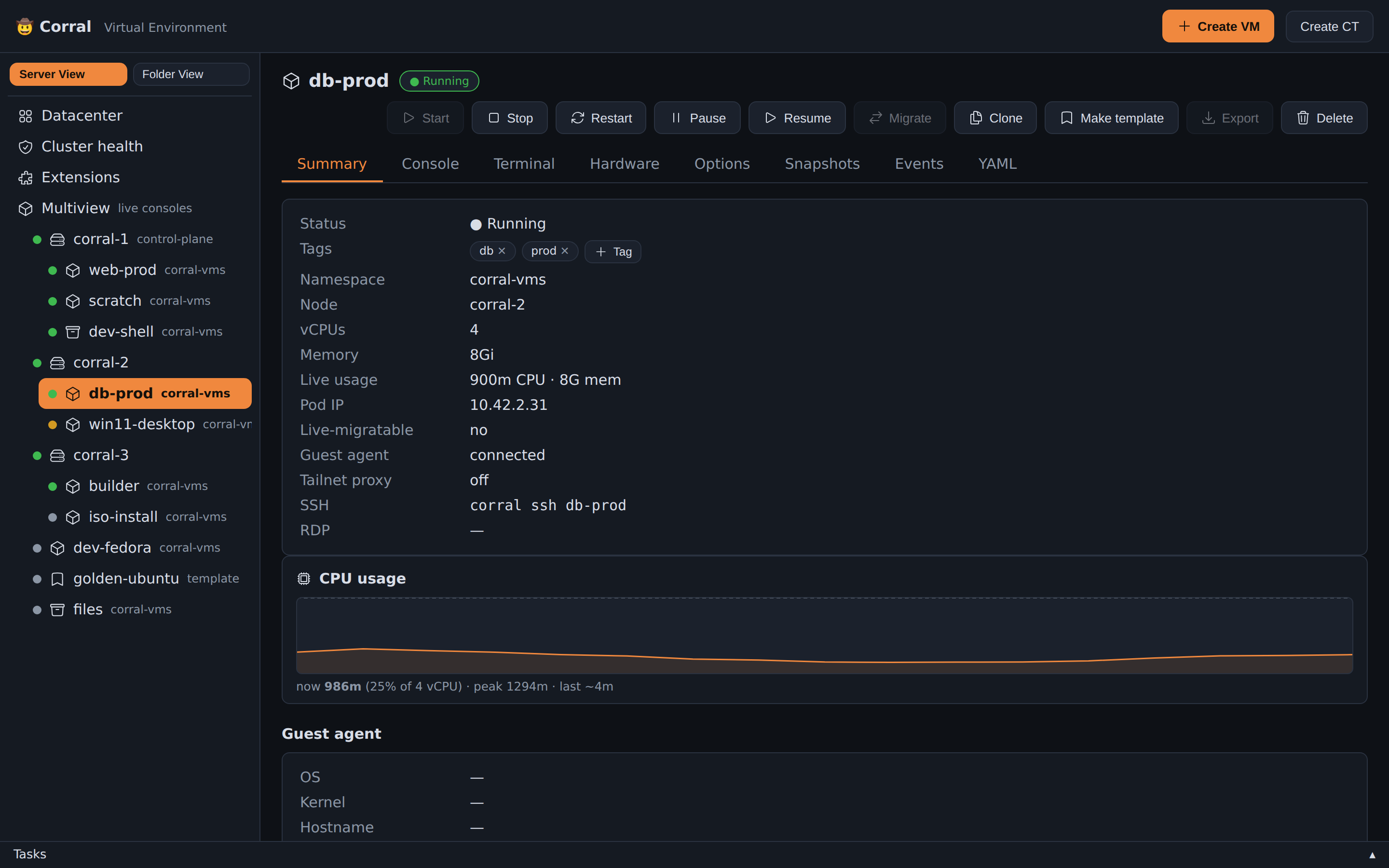
Run corral web, then open the Proxmox-style web UI on port 8006 of localhost. For public, local, homelab, and always-on setups see deployment modes.
Features
- Datacenter Tree: Navigate through all VMs, CTs, and Incus instances across local and cluster nodes.
- Live CPU & Memory Sparklines: Real-time load graphs for each VM.
- Tag Filters: Filter instances by custom tags (
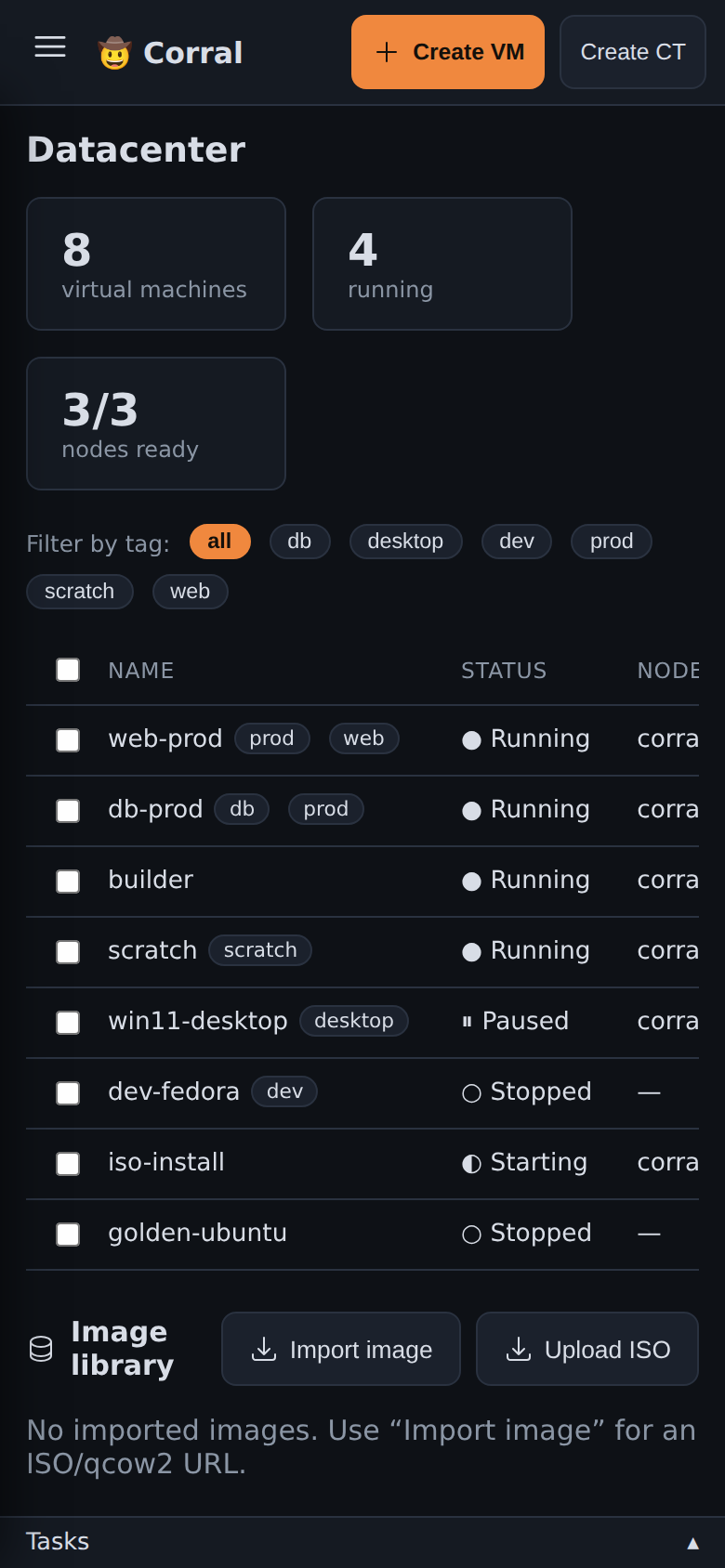
prod,dev,desktop). - Mobile Responsive: Manage your VM fleet from your mobile browser.
- Theme & Brand: Customize accent colours and the header brand, and inject custom CSS. Use CLI flags, a config file, or the built-in Settings page.
Topology
Topology, under Datacenter in the tree, draws the fleet as the machines it runs on. Each node is a card, with its guests inside and the CPU and memory they take summed at the top. A tile's left edge shows the guest's state.
To migrate a guest, drag its tile onto another node's card. corral asks you
to confirm first. If it cannot make the move, it says why and refuses it. The
keys g then t open the topology from anywhere.
Several dashboards
A Datacenter or node screen can hold more than one dashboard. Use the picker above the widgets to switch, and New to add one. Each dashboard keeps its own arrangement and its own density. So you can keep one screen for capacity and another for a failure you need to chase.
Rename changes the name of the current dashboard. Delete removes it and its arrangement; the widgets stay available under Add widget. A screen always keeps at least one dashboard, so the last one does not delete.
Dashboards live in your own browser, like the rest of the layout. corral shares them with nobody.
Dashboard density
The Density control above a dashboard sets how much room each widget takes: Compact, Cosy or Roomy. Compact fits more on one screen. Each dashboard keeps its own choice, and Reset layout puts it back with the arrangement.
Links to a screen
The address bar follows what you look at. Select a guest and open its console, and the address holds both. Send that address to somebody else and they arrive on the same screen. The back and forward buttons move through the screens you visited.
The address carries the tree view, the selection and the open tab. On a screen with the guest list, it also carries the list's filters and sort. So you can send somebody the stopped guests on one node, sorted by memory. It does not carry how wide you keep the sidebar, which columns you hid, or where you put the dashboard widgets. Those stay in your own browser.
Web keyboard shortcuts
Press Ctrl+K (⌘K on macOS) to open the command palette. Type part of a
name to find a VM, a CT, a node or a pool. Type a verb and a name to find an
action, for example stop web-prod. Press Enter to run the first result.
The items that you used last show at the top of the list.
| Key | Action |
|---|---|
Ctrl+K | Open the command palette |
Ctrl+B | Hide or show the sidebar |
? | Show the list of shortcuts |
/ | Filter the tree by guest name |
c | Open the console of the selected VM |
s | Start or stop the selected VM |
g then d | Go to the datacenter |
g then t | Go to the topology |
v | Switch the tree to the next view |
t | Show the Tasks panel, and hide it again |
e | Show the Events panel for the selection, and hide it again |
You can also narrow the palette by a field. Type node=corral-1 to see only
the guests on that node, or status=stopped to see the stopped ones. The
fields are node, namespace, status, backend and tag. A field and a
name work together: node=corral-1 web searches only that node.
The one-key shortcuts do not operate when you type in a field or in a console. A read-only user does not see the actions that change a guest.
The server also refuses these actions to a read-only user. A read-only user cannot open a console or export a disk. The one exception is a VDI desktop that the user holds.
Theme & Branding
In Corral's web UI, you can fully customize the accent colour, the header brand, and custom CSS. You need no source-code changes.
CLI flags (highest priority, override everything):
corral web --accent \"#3b82f6\" --brand-title \"My Lab\" --brand-emoji \"⚡\" --brand-subtitle \"Engineering\"
Config file (~/.config/corral/config.yaml, loaded on startup):
web:
  accent: \"#22c55e\"        # CSS hex colour
  accent_2: \"#16a34a\"      # hover/active variant
  brand_title: \"My Lab\"
  brand_emoji: \"⚡\"
  brand_subtitle: \"Engineering\"
  custom_css: |
    .btn.primary { border-radius: 20px; }
    .card { background: var(--panel-2); }
Settings page (web UI → Settings in the sidebar):
- Colour picker with preset swatches (Orange, Blue, Green, Purple, Red, Amber)
- Brand title, emoji, and subtitle fields with live header preview
- Custom CSS textarea that injects styles immediately as you type
- Save button persists to
config.yaml
Precedence: CLI flags > config.yaml > built-in defaults (🤠 Corral, orange accent).
Terminal UI (TUI)
To launch the interactive TUI (built on Bubble Tea), run corral with no arguments. To explore in demo mode, run corral --demo.
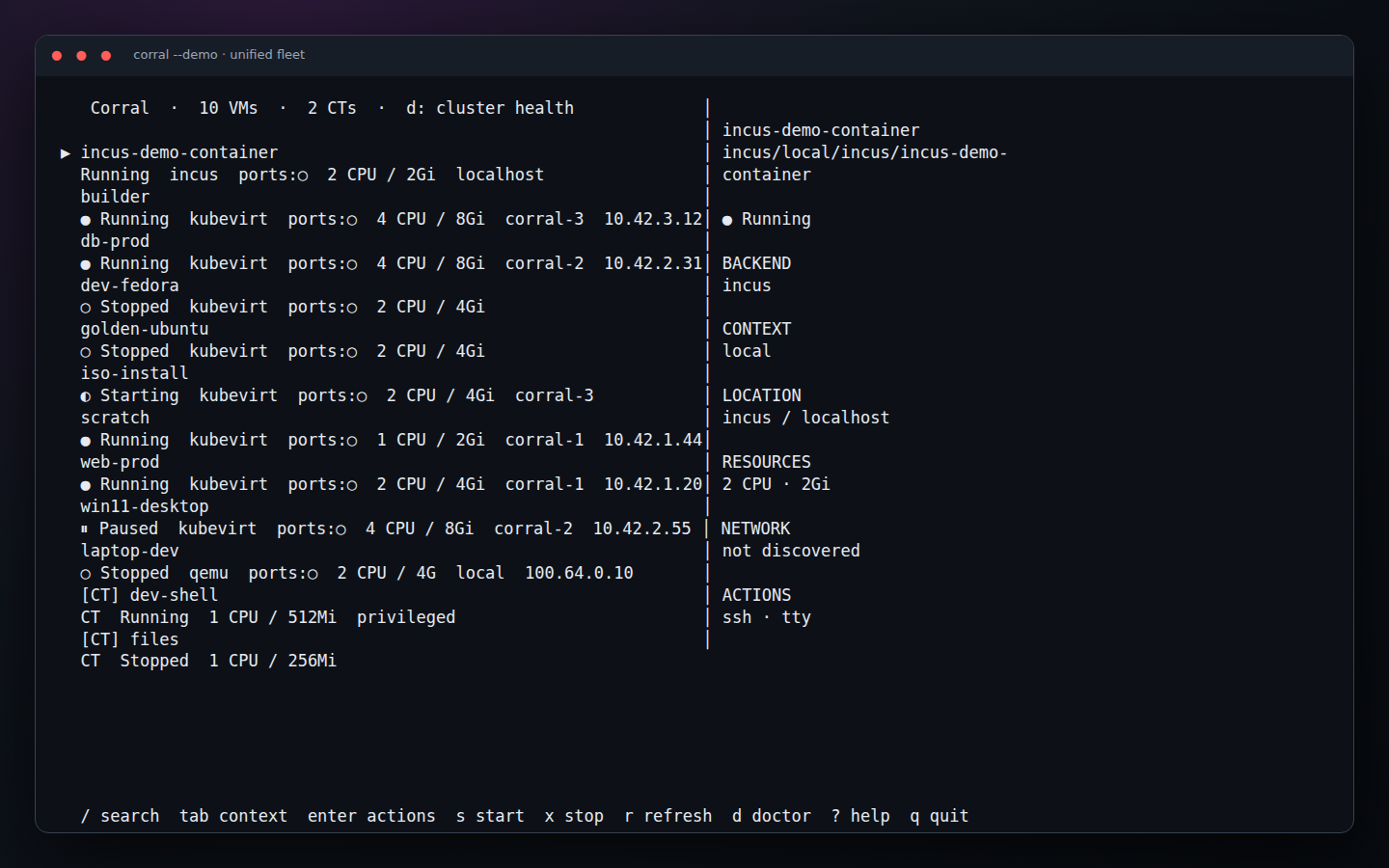
The left side is a unified, searchable fleet. Wide terminals add a details pane with canonical ID, backend/context, placement, address, resources, and available operations. Failed remotes appear as partial-fleet warnings without hiding healthy instances.
TUI keyboard shortcuts and features
/fuzzy-searches names, canonical IDs, backends, contexts, nodes, and IPs.Tab,[and]cycle between the complete fleet and named contexts.Enteropens a capability-aware action menu. The menu leaves out unsupported operations, so they do not fail after you select them. These all live there: power (start/stop/restart/pause/resume), migrate, clone, snapshots, and events. So do the template mark, CPU/RAM, published ports, export, SSH, VNC, and delete.- Snapshots opens the instance's captures:
ntakes one (named or auto-named),Enterrestores,xdeletes,rreloads. Corral supports every backend that can snapshot: KubeVirt, libvirt, Incus, and local QEMU. Each capture reports what it caught (offline, filesystem, or crash-consistent). This is the same as the web UI's Snapshots tab. - Events shows the recent Kubernetes events for a KubeVirt VM and its
virt-launcherpod, newest first. - Make/Unmark template flips the golden-template label that
corral clonecopies from. - CTs get their own smaller menu — start, stop, console, CPU/RAM, delete.
sandxquickly start or stop the selected VM;rrefreshes every backend.druns scoped QEMU, KubeVirt, Incus, and libvirt diagnostics.- The mouse works too. Click a row to select it, and scroll with the wheel. Double-click to open its actions (or to run the highlighted one). A click on a port row in the ports form toggles it. Destructive actions still go through their confirmation — a double click can't reach anything a keypress can't.
?opens the in-app command deck.- QEMU, KubeVirt, Incus, libvirt, and pet-pod CTs share the inventory without losing their backend-specific capabilities.
3. Core Feature Walkthrough
1. Instance Lifecycle Management
Create and manage instances across any backend with identical commands:
# Create local QEMU VM
corral create dev-vm --iso https://example.com/ubuntu.iso --disk 40G

# Create KubeVirt cluster VM
corral create prod-vm --kubevirt --image fedora

# Create on an existing Incus remote
corral create fast-vm --backend incus --context lab --image images:ubuntu/24.04

# Universal operations
corral start dev-vm
corral stop dev-vm
corral delete dev-vm
2. Remote Access: VNC, RDP & TTY
Corral provides single-command remote access to guest displays and shells:
In-Browser & Local VNC
- VNC Display:
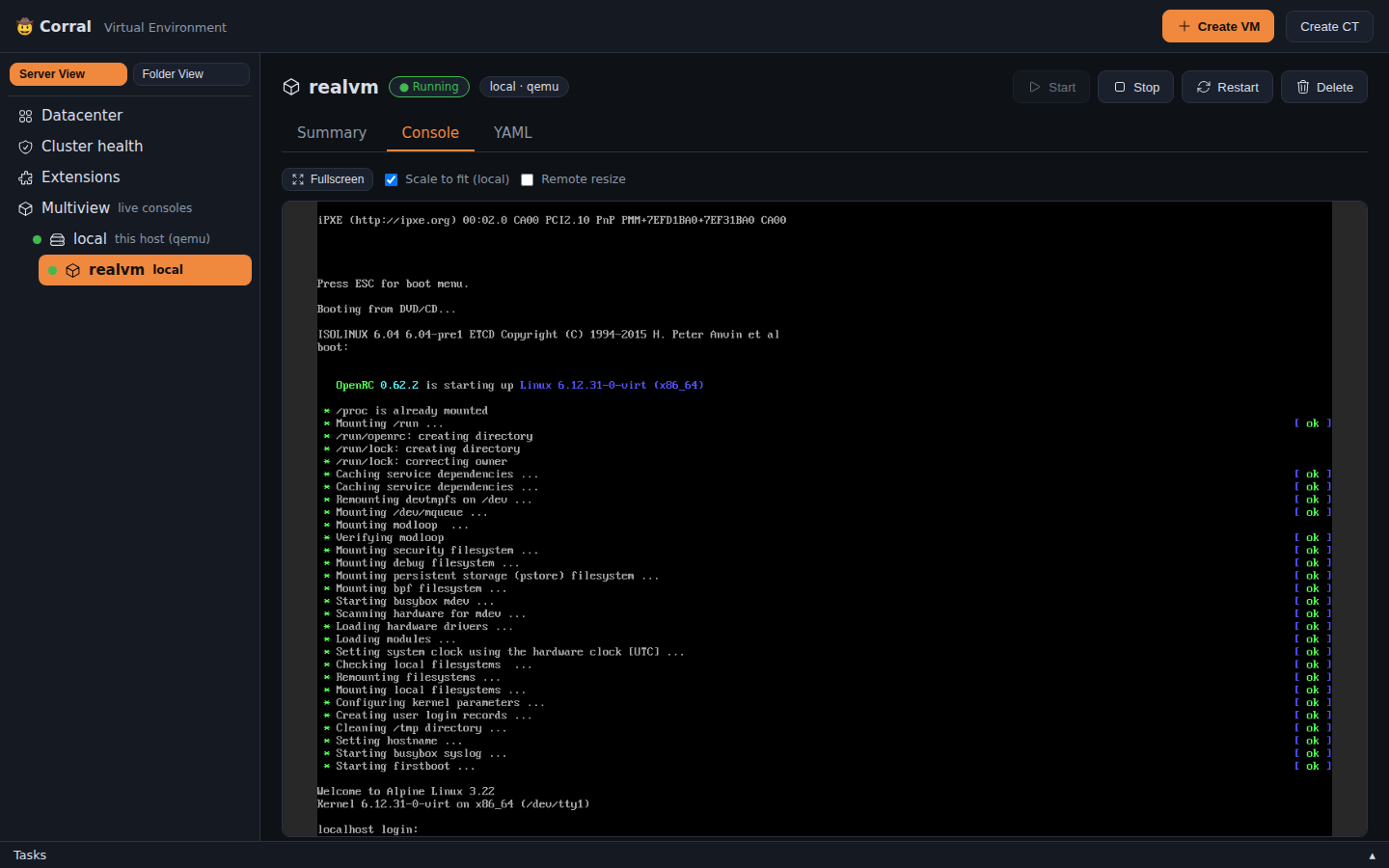
corral viewer <vm-name>opens a VNC session. In the Web UI,noVNCshows the display in the browser, with nothing to install. - Screenshot:
corral screenshot <vm-name> -o screen.pngsaves the display of a local QEMU or KubeVirt VM as a PNG. It also tells you if the screen is blank, and--require-paintfails on a blank screen. KubeVirt captures go throughvirtctl vnc screenshot. - Interactive TTY / SSH:
corral ssh <vm-name>orcorral ct console <ct-name>connects your terminal to a shell in the guest (through SSH,virtctl ssh, orincus exec).
Scripted console access
Use corral console <vm-name> to get a console page for one VM. The page shows only the screen of the VM. Browser automation, for example Playwright, can use it without the dashboard.
corral console desk
# Console of desk: http://127.0.0.1:41234/console/corral-vms/desk
The command finds the VM and starts a web server. It prints the URL, and then serves the page until it gets SIGINT or SIGTERM. The --addr flag sets the listen address. The default is 127.0.0.1:0, and the OS selects a free port. The --json flag gives one line of JSON:
{"vm":"desk","namespace":"corral-vms","url":"http://127.0.0.1:41234/console/corral-vms/desk","websocket":"ws://127.0.0.1:41234/api/vnc/corral-vms/desk"}
Each corral web server also has the page at /console/<namespace>/<name>. The URL does not change while the VM exists. The page has these properties:
- It shows the screen at 1:1 scale. Add
?scale=fitto scale the screen to the window. <body data-connected="true">shows that the console is connected.- The canvas has the ID
vnc-canvas. It gets keyboard focus, so key presses go to the guest. - The page connects again after a guest reboot or a logout.
- The page uses the same websocket as the dashboard, with the same access checks.
This Python example opens the console of desk with Playwright:
import json
import subprocess

from playwright.sync_api import sync_playwright

console = subprocess.Popen(["corral", "--json", "console", "desk"], stdout=subprocess.PIPE, text=True)
url = json.loads(console.stdout.readline())["url"]
try:
    with sync_playwright() as p:
        page = p.chromium.launch().new_page(viewport={"width": 1920, "height": 1080})
        page.goto(url)
        page.wait_for_selector("body[data-connected=true]", timeout=120_000)
        page.keyboard.type("hello")
        page.locator("#vnc-canvas").screenshot(path="desk.png")
finally:
    console.terminate()
corral web --addr 127.0.0.1:0 also lets the OS select the port. The server writes the URL to stderr. With --json, it writes {"url":"http://127.0.0.1:41234"} to stdout.
Console keyboard and pointer
Use these commands when the guest has no SSH, for example at a greeter or at a LUKS passphrase prompt. They work on local QEMU and KubeVirt VMs. You do not need a VNC client.
corral key <vm-name> ret                       # press one key
corral key <vm-name> ctrl alt f2               # press a key combination
corral type <vm-name> 'my passphrase' --enter  # type text, then press Return
corral type <vm-name> --file input.txt         # UTF-8 text; no extra Return
corral type <vm-name> --file script.ps1 --powershell --enter
cat script.ps1 | corral type <vm-name> --file - --powershell --enter
corral pointer <vm-name> 1236 12 --click left  # click at x=1236, y=12
-
corral keyuses QEMU key names:ret,esc,tab,spc,backspace,delete,ctrl,alt,shift,meta_l(the Super key),f1tof24,up,down,left,right, letters and digits.corral key --helpshows more names. The keys go down in the given order and come up in the opposite order. -
corral typeneeds one source: positional text,--file PATH, or--file -to read stdin. Input must be valid UTF-8, and ordinary input must contain only characters a US keyboard can type. Corral checks all input before it sends any keys. It rejects unsupported characters; it does not silently discard them. Corral does not trim files or stdin: ordinary newlines type Return.--enteradds one extra Return explicitly. -
With
--powershell, Corral treats the input as PowerShell source and removes an optional UTF-8 BOM at the start. It typespowershell.exe -NoLogo -NoProfile -EncodedCommand BASE64. The payload uses UTF-16LE without a BOM. It preserves Unicode, quotes, and line breaks. For supplementary characters, it uses UTF-16 surrogate pairs.Corral refuses empty or BOM-only PowerShell source. The complete ASCII launcher must fit the limit of 8,191 characters for a Windows
cmd.execommand line. Corral will refuse a longer script before it types any keys. This mode uses the same QMP/VNC keyboard paths, not a guest agent or a new backend. -
Manually focus a guest command field or shell that can launch
powershell.exebefore you send the launcher. Corral does not open Run, focus a window, elevate through UAC, supply credentials, or automate Windows Setup. Without--enter, Corral types the launcher but does not submit it. Acknowledgement of console keys or synchronization of the transport confirms delivery, not script execution. Check an observable guest result, such as a file that the script writes. Inspect that result through your normal guest access. -
Base64 is reversible, not encryption. You can recover the source from the launcher, and Windows Run or shell history may retain it. Do not treat
--powershellas secret storage. -
corral pointermoves the pointer to a position on the screen. The position is in pixels from the top-left corner, and it must be in the screen thatcorral screenshotshows. Add--click left,--click middleor--click rightto click there. Add--doubleto double-click. Only KubeVirt VMs support this command, and the VMI must have a tablet input device. -
A local QEMU VM gets the keys through its QMP monitor. A KubeVirt VM gets them on its VNC console through
virtctl vnc, thusvirtctlmust be on yourPATH. -
KubeVirt allows one VNC session for each VM. Each command closes the VNC session that you have open, for example the console in the web UI. Open the console again after the command.
-
Normal console-input output stays silent. With
--json, each command prints what it sent. For example,corral pointerprints{"vm": "desk", "action": "pointer", "x": 1236, "y": 12, "button": "left", "double": false}.For
corral type, Corral prints only{"vm", "action": "type", "characters", "enter"}. The value ofcharacterscounts the source, not the encoded launcher. It excludes a stripped PowerShell BOM and the optional appended Return. Corral never prints the source or its encoded payload.
3. Bootable Container Images (bootc)
Boot containers directly as VMs using the bootc plugin:
corral plugin install bootc
corral bootc create my-node --image quay.io/centos-bootc/centos-bootc:stream9
- Builds a bootable OS disk on the cluster with
bootc install to-disk. - The VM gets a USB tablet, so clicks in the noVNC console land where you aim them.
- Upgrade the OS image of a guest with
corral bootc upgrade <vm-name>.
For desktop images without a regular account, create one in the installed disk. Do not change the guest by hand:
corral bootc create my-node --image ghcr.io/tuna-os/marlin:tuna \
  --user tuna --password-prompt
The account gets a home directory in /var/home, a Bash login shell, and
the password. Corral writes it to the /etc and /var of the installed
deployment. The account is there at the first boot, and the login screen
shows it.
Scripts cannot answer a prompt. Give the password on stdin with
--password-stdin. Corral reads the first line and does not show it:
printf '%s\n' "$PASSWORD" | corral bootc create my-node \
  --image ghcr.io/tuna-os/marlin:tuna --user tuna --password-stdin
You can also give a SHA-512 crypt value with --password-hash. Corral rejects
--password in plaintext, because other users can read command lines. Use
only one of --password-prompt, --password-stdin, and --password-hash.
The same account flags work with bootc rebuild, bootc upgrade, and
bootc switch. You cannot use --resume to add an account to a disk that
is already installed.
The web API can rebuild a bootc disk only in the server's default KubeVirt context.
It rejects a different, malformed or repeated context selector before it
looks up the image or stops, deletes or builds resources.
It does not try another cluster. Credentials keep the identity of that default target.
Testing a bootc image (corral vmtest)
corral vmtest boots an image locally and tests it. It needs no plugin, and
it is what a CI pipeline should call:
corral vmtest gate --bootc ghcr.io/tuna-os/yellowfin:latest \
  --user tester --password hunter2 --sudo-user \
  --check 'systemctl --failed --no-legend'
With the default --keep behavior, use the SSH command printed in the
summary. Its private key stays outside the artifact directory, so the uploaded
evidence does not expose it.
The run leaves the VM up, so the next step tests a real machine over SSH.
It also writes the guest's serial console, a screenshot of every stage of the
boot, an optional WebM timelapse, and result.json. Accounts, passwords,
packages and first-boot hooks go into a layer built on top of the image, which
is never modified. Full reference:
docs/ci-boot-gate.md.
4. Proxmox VE API Compatibility Layer
Corral includes a layer that emulates the REST API of Proxmox VE (/api2/json/...). With it, Terraform (bpg/proxmox), Ansible, and Proxmoxer tools can manage KubeVirt and Incus instances natively.
corral plugin install proxmox
corral proxmox serve --addr :8006
5. Plugin Marketplace
Expand Corral with lightweight marketplace plugins:
# Browse marketplace
corral plugin search

# Installed plugins
corral plugin list

# Plugin management
corral plugin install <name>
corral plugin remove <name>
Available Plugins
bootc: Builds VMs from bootable container images.proxmox: Compatibility server for the REST API of Proxmox VE.backup: S3/R2 VM disk backup & restore.snapsched: Automated schedules for VM snapshots, with retention rules.schedule: VM autostart and shutdown cron windows.gpu: GPU / PCI passthrough, via discovery of the device plugin.windows: First-class creation of Windows VMs (UEFI, TPM, virtio drivers).vdi: Desktop pools for Virtual Desktop Infrastructure (VDI).
Plugin screens and widgets
Some plugins add screens and dashboard widgets to the web UI. The Extensions screen shows what each plugin adds, before and after you install it.
- A plugin widget does not appear on its own. Add it from "Add widget" on the Datacenter dashboard.
- A plugin screen opens from "Added by plugins" on the Extensions screen, or from the command palette.
- A plugin screen is read-only. It shows information, and it cannot change the fleet.
- If a plugin does not answer, the widget or screen tells you why. Click "Try again" to ask again.
4. Diagnostics & Troubleshooting
Run corral doctor to diagnose cluster capabilities, hypervisor support, and storage drivers:
corral doctor
In a multi-context setup it diagnoses every configured QEMU, KubeVirt, Incus,
libvirt, and Proxmox target. Use corral doctor --context NAME for one target. The
complete capability matrix and the direct-versus-relayed networking behavior
are in backend-support.md.
local [qemu]
  ✓ QEMU (local backend)              qemu-system-x86_64 found (probe 2ms)
  ✓ KVM acceleration                  /dev/kvm accessible
  ✓ qemu-img                          found — disk create/resize for local VMs

kubevirt [kubevirt]
  ✓ KubeVirt installed                operator + CR present (probe 41ms)
  ✓ CDI installed                     containerized-data-importer present
  ✓ VolumeSnapshotClass               persistent-VM snapshots available

lab [incus]
  ✓ Incus remote reachable            remote API and trust are valid (probe 18ms)
  ✓ Incus VM support                  virtual-machine instances supported
Problems and fixes explains each check, the common error messages, and how to collect evidence when a VM does not boot.
Reproducible screenshots
Documentation captures use the real demo fleet that is built in. They are automated for both Chromium and the Bubble Tea TUI:
npm install --prefix e2e
node scripts/capture-docs.mjs docs/screenshots/generated
The same command can target the TunaOS site checkout:
node scripts/capture-docs.mjs ../docs/static/img/screenshots/corral.
The Screenshots workflow runs this script when the web UI, the TUI or the
demo fleet changes, and one time each week. It retains the captures and a
corral-screenshot-patch artifact for a maintainer to review and submit as a
PR; automation does not create a Corral PR. The job summary and
contribution guide
describe the handoff. When the TUNAOS_DOCS_TOKEN secret is set, the separate
site job still opens a PR in tuna-os/docs to update the TunaOS site images.